
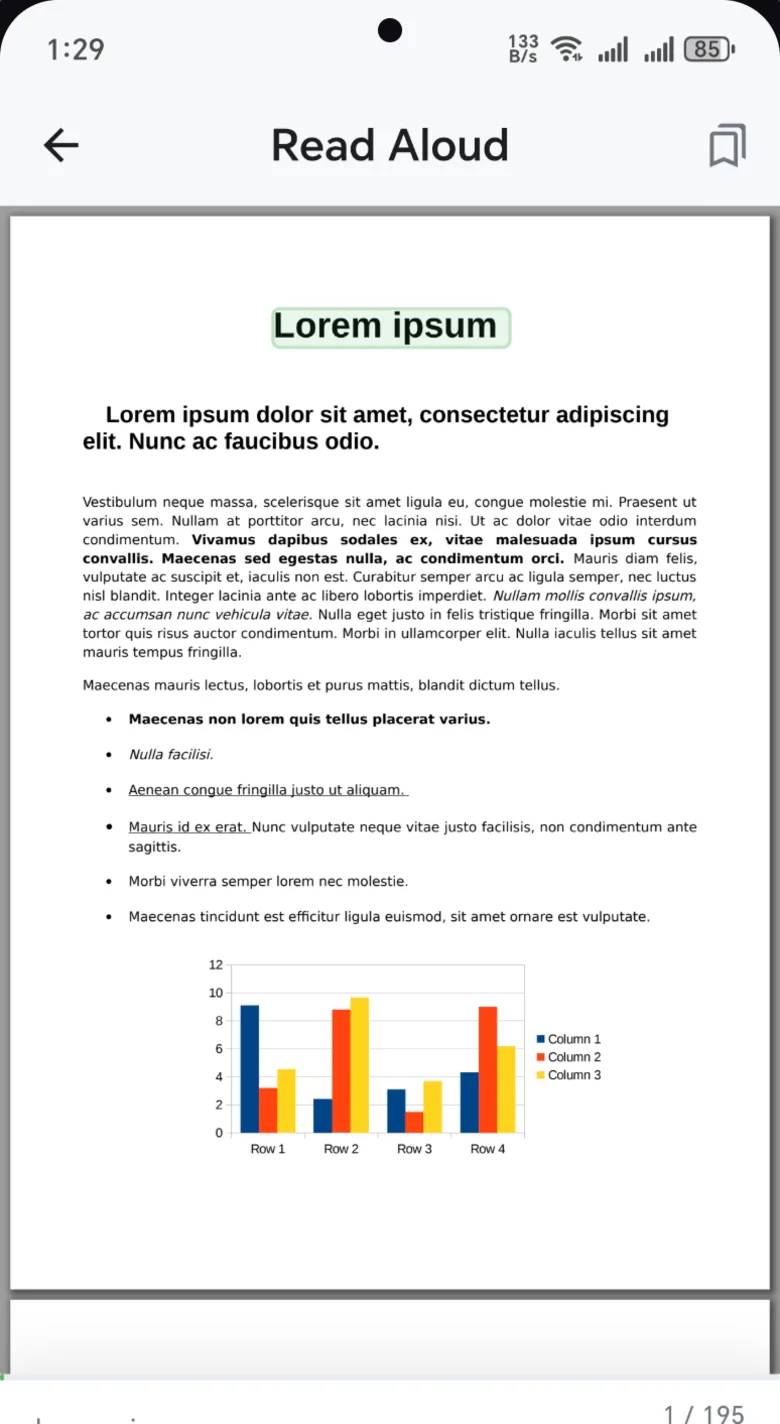
How to convert a PDF to MP3
- Open the documentAny PDF, scan or photo in Pix Scan. Scanned pages work too, because Pix Scan reads their text first.
- Pick a voiceIn Read Aloud, choose the voice, speed and pitch you like. The audio file uses the same settings.
- Tap Export audioChoose MP3 or M4A and tap Create audio. You can also start from the Tools tab.
- Share or save itWhen the audio is ready, play it, share it, or save it to your phone to use in any music or podcast app.
Or just press play
You don't have to make a file to listen. Read Aloud plays any document right away, and it's built for long reads:
- Sentence highlighting so you can follow along or look away
- Voice, speed and pitch that suit you
- Sleep timer and bookmarks
- Lock-screen controls, so it keeps playing with the screen off
- Picks up where you stopped, for every document
Who listens to their documents?
Students turn notes and handouts into audio for the bus or the gym. Professionals catch up on long reports during the commute. People with low vision or dyslexia hear any page with the voice and pace that work for them. And anyone with a pile of reading can get through it while doing something else.
Works offline. Read Aloud and audio export use the voices on your phone. A few voices need a connection, and Pix Scan marks them.
Common questions
Is converting a PDF to MP3 free?
Yes. Read Aloud and audio export are part of Pix Scan, which is free with no ads, subscription or account.
Can it read scanned documents and photos?
Yes. Pix Scan runs text recognition on scanned pages and photos first, then reads the text aloud or turns it into audio.
Which audio formats can I save?
MP3 or M4A. Both play in almost any music, podcast or file app.
Does it work without internet?
Yes, with the voices installed on your phone. A few voices need a connection, and the app marks them.
